

Late 2022. ChatGPT is blowing up timelines, cranking out essays, writing code, and even helping plan vacations. Businesses? Buzzing. Every day users? Hooked. But under all that hype, there’s a major hitch.
AI feels like a genius locked in a room without Wi-Fi—brilliant, but disconnected. Ask it to check your calendar, summarize your Slack chats, or send a file via Google Drive? All you’d get is:
“Sorry, I can’t access that.”
That’s because early AI models weren’t built to interact with real-world tools or live data. Users had to manually copy-paste, fetch, and feed data themselves.
By 2023, the AI world said “enough!” and gave rise to agentic systems—AI that could act, not just answer. Now, AI could:
Ping APIs.
Pull GitHub commits.
Access Google Drive or Slack.
Generate reports using live sales data.
It was a breakthrough. But soon, another problem emerged—the M × N nightmare.
Every model needed to be hard-wired to every tool. 5 models + 10 tools = 50 custom integrations.
Tools broke. Security was shaky. It didn’t scale.
November 2024: Enter MCP, the Game-Changer
That’s when Anthropic unveiled the Model Context Protocol (MCP). It was like giving AI the “Wi-Fi” it had always needed.
Inspired by the Language Server Protocol (which revolutionized coding workflows), MCP created a standardized way for any AI model to talk to any tool securely, efficiently, and at scale.
What is MCP? MCP is a protocol—a common language—that connects AI models to tools and data sources. Instead of building dozens of fragile integrations, developers now plug into a single, universal system.
Core Components in MCP
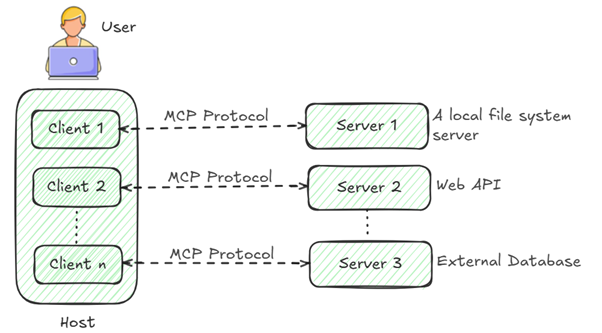
Host: This is an AI app like Claude Desktop or an IDE (Windsurf, Cursor, etc.) that provides an environment to establish client and server connections, manages the lifecycle, authorization (more on that later), and is responsible for initializing and maintaining all clients.
Client: This resides within the host and plays a crucial role in communicating with servers. Clients maintain a one-to-one stateful connection, handle bidirectional communication, and monitor server components.
Server: These are Python executable functions created with the MCP server components. These scripts enable LLMs to get real-time information from databases, web APIs, external apps, and more.
Understanding these components is crucial as they drive the ecosystem and have multiple phases:
-
Initialization Phase: This is a critical phase to get started, usually kicked off by clients sending an ‘initialize’ request. Clients and servers start chatting and share capabilities. Clients learn what tools, resources, and prompts are available on each server and are responsible for relaying this to the LLM. Once clients gather all the info from the servers, they confirm with an ‘initialized’ notification. Until the connection’s solid, no requests are shared—this step is all about figuring out capabilities and protocol versions each supports.
-
Operational Phase: Once the connection’s up and capabilities are sorted, they start swapping messages based on user requests (e.g., “Send an email to <mailid> with <context>”). By laying out the tools and their capabilities, this lets LLMs pick the right tool(s) and pass the necessary info (parameters in the requested format) to make it happen. The client then funnels results back to the LLM. Since MCP needs a stateful connection, it’s key to keep pinging servers to make sure nobody’s dropped off.
-
Termination Phase: This hits when the user shuts things down, and no more chit-chat’s needed. Even here, clients and servers have to sync up based on the transport method. If it’s stdio, the client starts closing the input stream, and the server follows by shutting its output stream. For HTTP transports, the HTTP connection gets cut and confirmed.
Server Types
There are two types of servers for adding or creating tools:
-
STDIO (Standard Input/Output): This server type lets the client launch the MCP server as a subprocess, perfect for running local commands or talking to local file systems and I/O operations.
-
HTTP over SSE (Server-Sent Events): This connects to remote services via HTTP, setting up a bidirectional communication channel. STDIO’s the main star for now, but HTTP support is growing to open up broader remote access.
Server Components
-
Root: Clients share which directories the system can access and make them available. Want servers to poke around files on your Desktop? The client tells the server those directories when it gets a ‘roots/list’ request. The client keeps servers updated on any access changes, and servers stick strictly to the directories they’re allowed.
-
Sampling: This lets servers request “completions” or “generations” from a client-side LLM, enabling nested AI calls. It’s like giving the AI a mirror to reflect on its own thinking, supercharging its ability to handle tricky tasks. Picture the AI texting a buddy for a quick brainstorm before diving in, often with a human in the loop to keep things on point.
Types of MCP Servers:
-
A local MCP setup keeps your AI on your device, using STDIO to speed through local files or apps, fast and secure, but tied to your hardware.
-
A remote setup puts your AI in the cloud, connecting to web tools via HTTP/SSE, which are great for flexibility, but it needs a strong internet connection.
-
A hybrid setup blends both, letting your AI tackle local and cloud tasks together- super versatile, but a bit more complex to manage.
Server Features:
-
Resources are the data pools servers can access, like local files or databases, acting like a librarian who knows which shelves to raid, but they’re strictly limited to what the client greenlights for security.
-
Tools are the actionable functions (executable functions) servers provide, letting your AI do things like send emails or ping APIs.
-
Prompts are customized instructions or templates servers send to the LLM, steering its responses like a coach whispering plays to a quarterback, ensuring it nails the context.
Each feature works together to make your AI a proactive problem-solver, but they need clear setup to avoid confusion or overreach. It’s all about giving your AI the right ingredients, tools, and game plan to get the job done.
Advantages of MCP
-
Standardized Integration: MCP enables AI to connect to any tool or data source using a single protocol, overcoming the M×N problem by eliminating complex custom integrations.
-
Scalability: Effortlessly supports adding new tools or systems, making it ideal for growing businesses and complex workflows.
-
Action-Oriented AI: Transforms AI into a proactive tool that fetches data or executes tasks like API calls, boosting productivity.
-
Resilient API Integration: Ensures developed products remain stable when external APIs change, as providers adopt MCP for better compatibility, simplifying developers’ work.
Challenges and Limitations of MCP
-
Vulnerability to Tool Manipulation: Servers can be compromised via hidden instructions or tool shadowing, risking unauthorized actions or data leaks.
-
Stateful Connection Overhead: MCP’s continuous, long-lived sessions conflict with modern stateless systems, increasing complexity and operational costs.
-
Implementation Complexity: Configuring servers and clients is technically challenging, often causing errors, and adding MCP unnecessarily can overcomplicate systems, choose it only when needed, like picking a knife over a sword.
-
Lack of Standardized Authentication: Absence of native multi-user authentication requires custom security solutions, adding setup complexity.
Using MCP with Claude Desktop: A Quick Guide
This guide walks you through setting up Claude Desktop with a local MCP (Model Context Protocol) server using the filesystem integration. By the end, you'll be able to ask Claude to read, write, and list files directly from a specific folder on your machine.
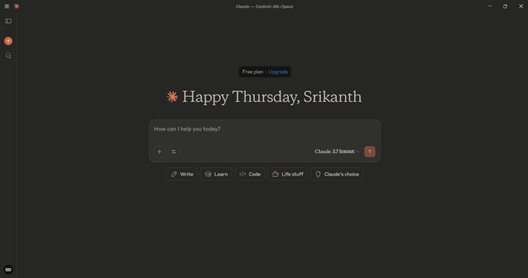
Step 1: Download Claude Desktop
Start by downloading Claude Desktop from the official website:
https://claude.ai/download
Step 2: Install Node.js
Claude Desktop’s MCP feature requires Node.js to be installed.
Download it from:
https://nodejs.org/en
To verify the installation, run the following command in your terminal or command prompt:
`node –version`

Step 3: Configure MCP in Claude Desktop
Now that everything is installed, we’ll configure a prebuilt filesystem MCP server.
-
Open Claude Desktop.
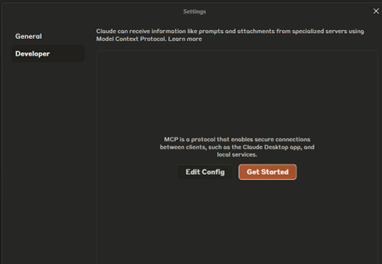
-
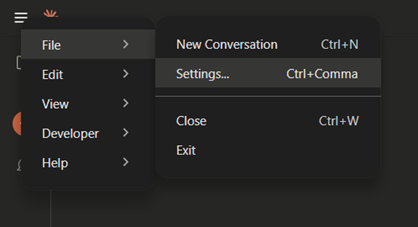
Go to Settings → Developer Page → Edit Config.
This will open the claude_desktop_config.json file. -
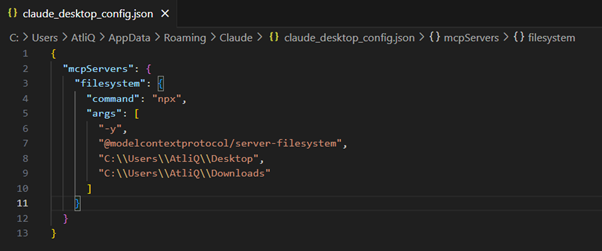
In the config file, add the following snippet to set up the MCP server:
{
"mcpServers": {
"filesystem": {
"command": "npx",
"args": [
"-y",
"@modelcontextprotocol/server-filesystem",
"<path(s) to be accessed by the MCP>"
]
}
}
}
Replace <path(s) to be accessed by the MCP> with the folder paths you want Claude to interact with. For example:
"C:\\Users\\yourname\\Desktop"
Step 4: Restart Claude Desktop
After saving the config file:
-
Close Claude Desktop completely (use Task Manager to End Task if needed).
-
Reopen the app.
-
Go to Settings → Developer Page again.
You should now see the server listed under the name we defined: filesystem.
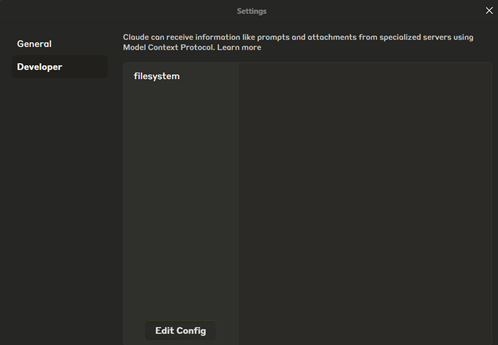
If it’s still not visible, make sure:
-
The JSON config is correctly formatted.
-
The folder path exists and is accessible.
-
Claude Desktop was properly restarted (Ending task if needed).
Step 5: Start Interacting with Files
Once your setup is confirmed, you can start asking Claude to:
-
List files in a folder
-
Read contents of a file
-
Write or modify files
Example command:
"List all files on desktop"
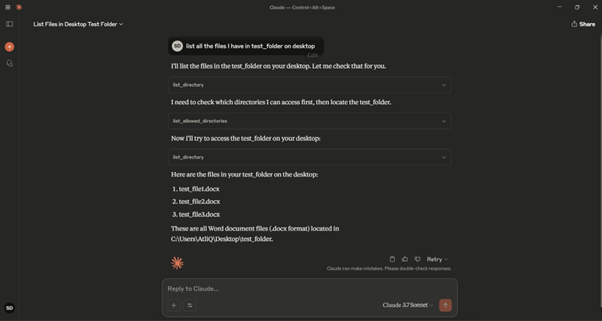
Claude will respond for your query, and you can continue interacting just like that.
Connecting Cursor to MCPs: Supabase Integration
In this section, we’ll explore how to connect Cursor to a Supabase database using MCP (Model Context Protocol). This allows you to query your database directly from the chat, making it incredibly useful for workflows that involve fetching or analyzing live data.
Step 1: Download Cursor
Get the latest version of Cursor from:
https://www.cursor.com/downloads
Step 2: Open MCP Settings
-
Open Cursor.
-
Navigate to Settings → MCP → Add New Global MCP Server.
This action will open the mcp.json configuration file—similar to how we edited the config for Claude Desktop.
Step 3: Set Up Supabase MCP
Refer to the official Supabase MCP guide here:
https://supabase.com/docs/guides/getting-started/mcp
Now, paste the following configuration into your mcp.json file:
{
"mcpServers": {
"supabase": {
"command": "npx",
"args": [
"-y",
"@supabase/mcp-server-supabase@latest",
"--access-token",
"<personal-access-token>"
]
}
}
}
Important: Replace <personal-access-token> with your actual Supabase Personal Access Token (PAT).
How to Get Your PAT:
-
Log in to your Supabase account.
-
Go to Preferences → Account Settings.
-
Under Access Tokens, click Generate New Token and copy it.
Once you've inserted the token, your mcp.json file is ready.
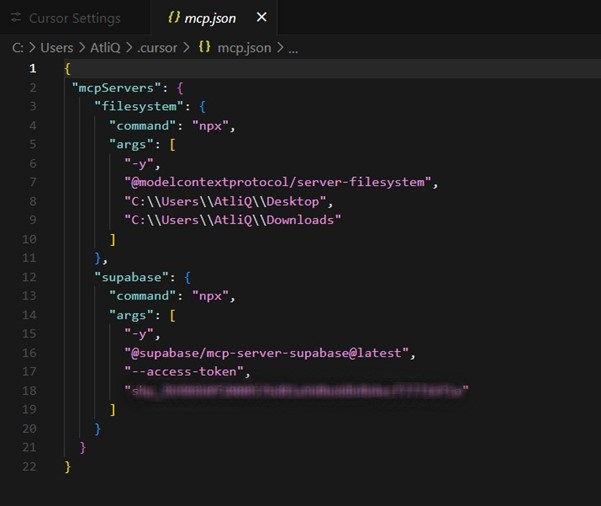
Step 4: Validate Your MCP Server
After saving the configuration:
-
Restart Cursor.
-
Go back to Settings → MCP.
You should now see supabase listed as an available MCP server.
Step 5: Start Querying Your Supabase Database
Now that your Supabase MCP server is active, you can start querying your database directly from the chat inside Cursor.
Example prompt:
"Get all users from the customers table where is_active is true."
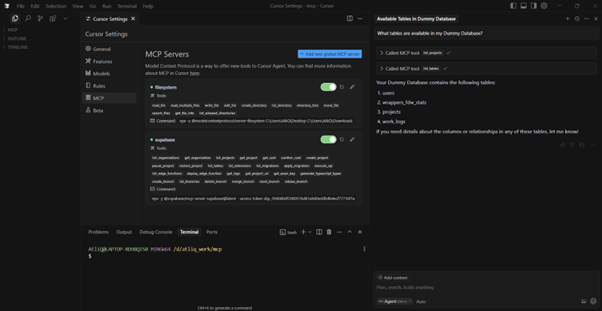
By connecting your database via MCP, you're enabling powerful, real-time workflows and queries right inside your dev tools. This setup is ideal for teams working on internal tools, data dashboards, or any workflow needing live Supabase data.
We’re entering an era where AI isn’t just answering questions; it’s taking action. But for that to truly work at scale, we need more than smart models. We need smart infrastructure. That’s where Model Context Protocol shines.
MCP doesn’t just patch problems; it rewires how AI connects to the world. By creating a shared language between models and tools, it eliminates messy integrations, tames complexity, and makes AI feel less like a chatbot and more like a real collaborator.
Whether you’re building with Claude, Cursor, or the next-gen IDE, MCP is quietly becoming the backbone of seamless, secure, and scalable AI development.
The best part? You don’t need to wait for the future. It’s already happening.
If you’re serious about building AI tools that don’t just think, but do, then MCP isn’t just an option. It’s your new default.